Estimated Reading Time: 14 minutes
Buying a second hand laptop can save you significant money while still getting excellent performance. Furthermore, the used laptop market offers high-end machines at fraction of original prices. Additionally, with proper inspection and testing, you can find reliable devices that last for years. Moreover, this guide provides everything you need to make a smart purchase decision.
The second hand laptop market has matured considerably in recent years. When buying a used laptop in 2026, the most crucial steps are to thoroughly inspect its physical condition, test all ports and keys, verify the screen for defects, and check the battery’s health and cycle count. Additionally, knowing what to check prevents buying machines with hidden problems. Furthermore, proper testing ensures performance justifies the price you pay. Therefore, following this comprehensive checklist protects your investment.
Modern second hand laptops offer remarkable value for various user types. Moreover, you can get higher-tier processors or more RAM than affordable in new budget laptops. Additionally, the key is matching hardware to your specific needs. Furthermore, avoiding common pitfalls requires systematic inspection. Consequently, this guide covers every aspect from initial research to final purchase.
Understanding Your Requirements: What Do You Really Need?
Basic User Requirements (2026 Standards)
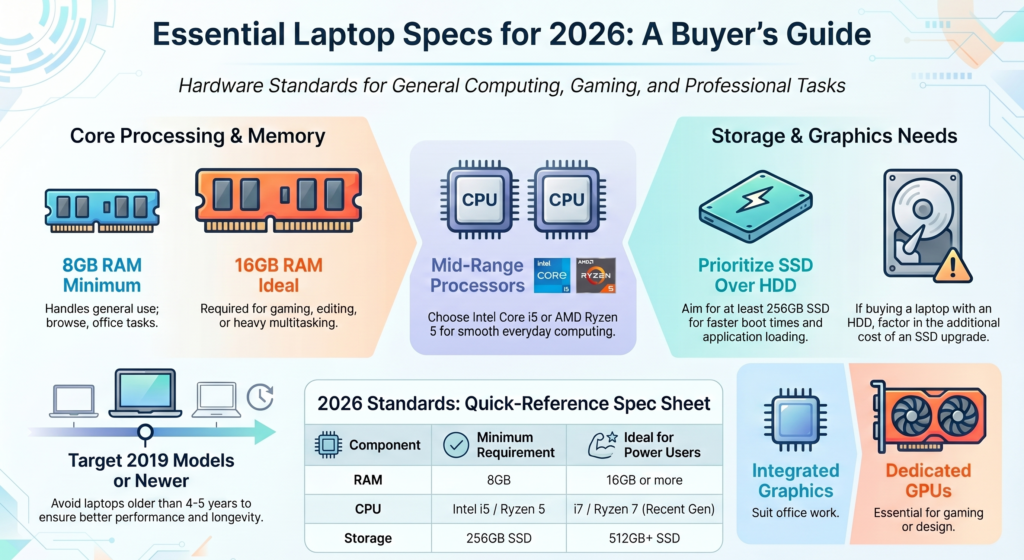
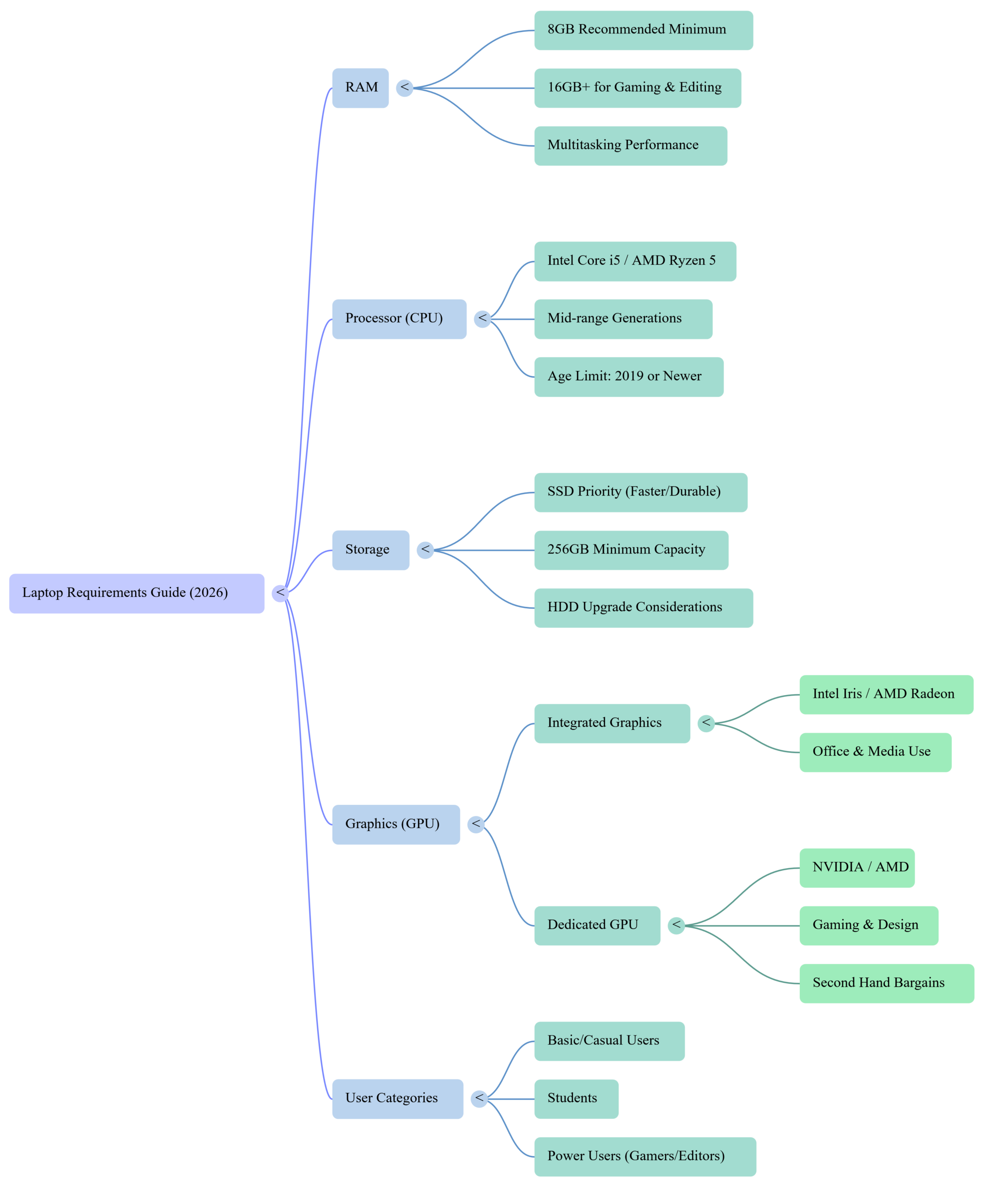
Determining your laptop needs helps narrow down suitable second hand options. For general use in 2026, 8GB of RAM is the recommended minimum, while 16GB or more is ideal for gaming, video editing, or heavy multitasking. Additionally, basic tasks like web browsing, email, and document editing work fine with moderate specs. Furthermore, students and casual users don’t need the most powerful machines.
Processor requirements depend on your typical workload. Additionally, Intel Core i5 or AMD Ryzen 5 processors handle everyday computing smoothly. Furthermore, these mid-range chips from recent generations offer excellent performance. Moreover, avoid laptops more than 4-5 years old unless exceptionally well-maintained. Therefore, targeting 2019 or newer models provides better longevity.
Storage Considerations
Storage type significantly impacts user experience more than raw capacity. A Solid State Drive (SSD) is significantly faster and more durable than a Hard Disk Drive (HDD). Additionally, aim for laptops with SSDs of at least 256GB capacity. Furthermore, SSDs make everything feel snappier from boot times to application loading. Moreover, if the laptop has HDD, budget for SSD upgrade costs. Consequently, storage type should be a priority consideration.
Graphics Requirements
Graphics needs vary dramatically based on intended use. For everyday tasks, integrated graphics are sufficient for most users. Additionally, Intel Iris or AMD Radeon integrated graphics handle office work and media consumption easily. Furthermore, for gaming, graphic design, or video editing, a dedicated GPU from NVIDIA or AMD is essential. Moreover, gaming laptops depreciate faster making them excellent second hand bargains. Therefore, match graphics capability to your actual requirements.
Where to Buy Second Hand Laptops: Trusted Sources
Certified Refurbished vs Private Sellers
Understanding different seller types helps make informed decisions. Additionally, certified refurbished laptops undergo professional testing and come with warranties. Furthermore, manufacturers and authorized retailers offer refurbished units at competitive prices. Moreover, these machines receive new batteries and thorough cleaning. Consequently, refurbished laptops provide peace of mind despite costing slightly more.
Private sellers offer the lowest prices but carry more risk. Additionally, platforms like Facebook Marketplace, Craigslist, and eBay connect buyers with individual sellers. Furthermore, you can negotiate prices directly and inspect before buying. Moreover, meeting in person allows thorough testing. However, private sales lack warranties or return options. Therefore, private purchases require more careful inspection.
Online Marketplaces vs Local Shops
Online marketplaces provide vast selection and competitive pricing. Additionally, sites like eBay offer buyer protection programs. Furthermore, detailed listings help pre-screen options before contacting sellers. Moreover, reviews and ratings indicate seller reliability. However, you cannot physically inspect before purchase. Therefore, online buying requires trusting seller descriptions and photos.
Local shops and pawn shops allow hands-on testing before buying. Additionally, you can immediately walk away from problematic machines. Furthermore, bringing a tech-savvy friend for second opinions helps. Moreover, local purchases avoid shipping delays and damage risks. Consequently, local buying provides the best testing opportunities.
Pre-Purchase Research: Know Before You Go
Check Market Prices
Research prevents overpaying for second hand laptops. Additionally, check completed eBay listings to see actual selling prices. Furthermore, compare prices across multiple platforms for similar models. Moreover, factor in the laptop’s age, condition, and specifications. Therefore, knowing fair market value strengthens negotiating position.
Verify Model Specifications
Confirm the exact model specifications before meeting sellers. Additionally, manufacturers’ websites list original specs for reference. Furthermore, sites like CPU Benchmark help compare processor performance. Moreover, ensure advertised specs match what’s actually inside. Consequently, verifying specifications prevents misleading listings.
Research Common Issues
Different laptop models have known problems worth investigating. Additionally, search “[model name] common problems” to learn potential issues. Furthermore, user forums reveal real-world experiences with specific models. Moreover, knowing weak points helps you inspect those areas carefully. Therefore, model-specific research guides your inspection priorities.
Physical Inspection: What to Check First
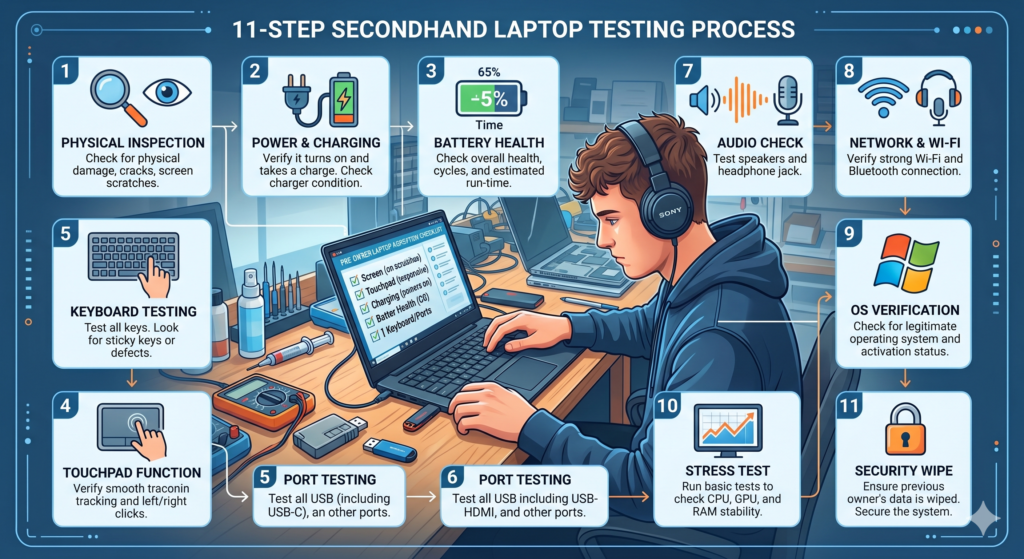
Step 1: Overall Condition Assessment
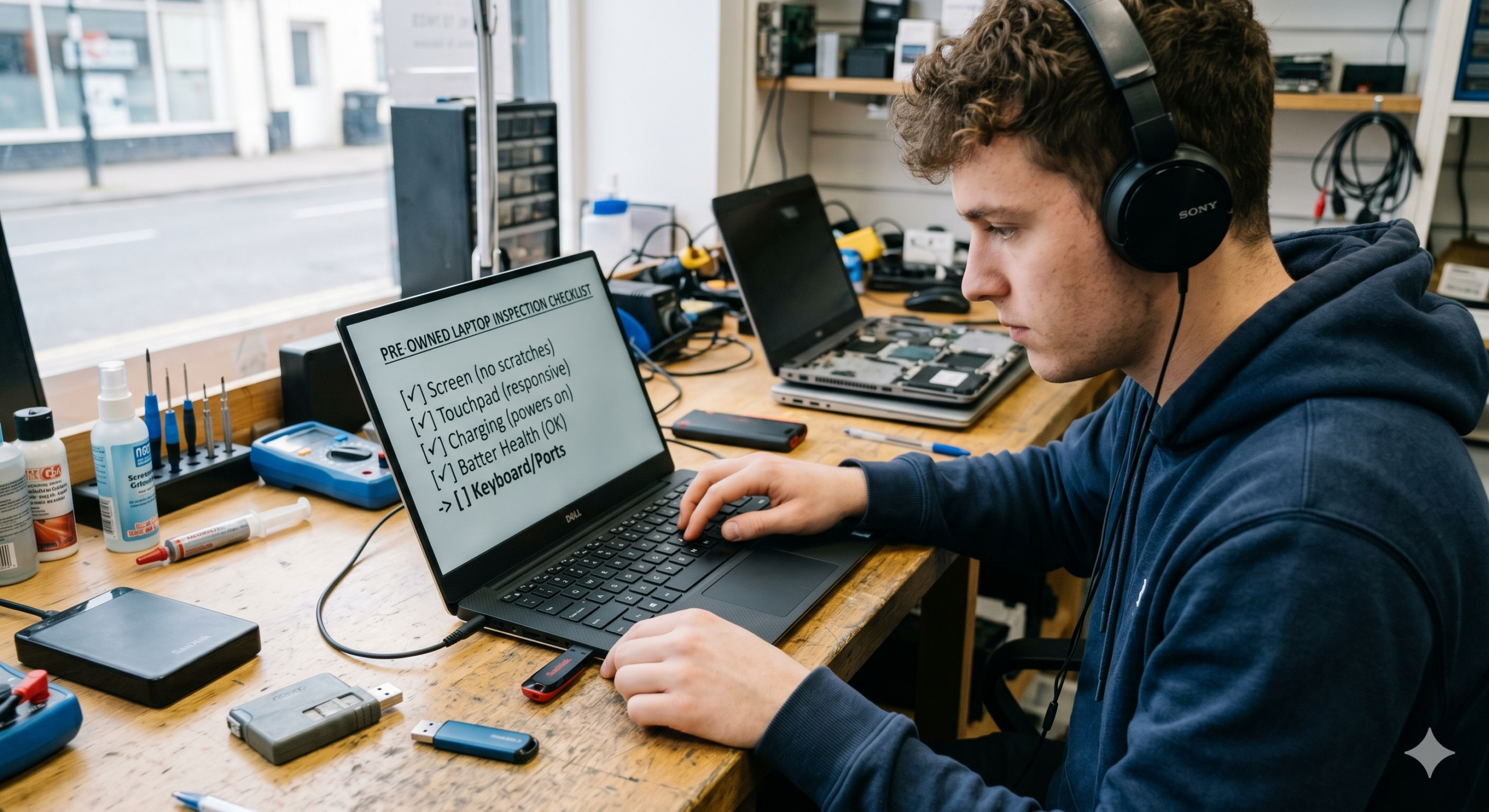
Begin with a comprehensive visual inspection of the laptop exterior. Additionally, look for dents, cracks, scratches, or other physical damage. Furthermore, check the laptop’s corners and edges for impact damage. Moreover, excessive wear suggests rough handling or poor care. Consequently, physical condition indicates overall treatment history.
The laptop’s hinges require special attention during inspection. Test the hinges by opening and closing the laptop several times – they should be firm, not loose or wobbly. Additionally, weak hinges are common failure points requiring expensive repairs. Furthermore, listen for unusual sounds when moving the screen. Moreover, ensure hinges hold the screen at various angles. Therefore, hinge condition significantly affects usability and longevity.
Step 2: Screen Inspection
Display quality dramatically impacts daily user experience. Turn on the laptop and check the screen carefully against both black and white backgrounds. Additionally, look for dead pixels appearing as black dots on white screens. Furthermore, check for bright spots showing as white dots on black backgrounds. Moreover, examine for color discoloration or uneven brightness. Consequently, screen defects are expensive to repair.
Test screen brightness adjustments through all levels. Additionally, ensure the display reaches comfortable maximum brightness. Furthermore, check that dimming works smoothly without flickering. Moreover, view the screen from various angles to test viewing angle quality. Therefore, thorough screen testing prevents disappointment after purchase.
Step 3: Keyboard and Touchpad Testing
Keyboard and touchpad are your primary interaction points with the laptop. Open a text editor and type on every single key to ensure they all work properly. Additionally, test special function keys including F1-F12 combinations. Furthermore, check that Shift, Control, Alt, and Windows keys respond correctly. Moreover, keys should feel springy and consistent, not mushy or sticky. Consequently, keyboard problems frustrate daily use significantly.
The touchpad requires separate comprehensive testing. Test the touchpad’s responsiveness including clicking and gesture controls like two-finger scrolling. Additionally, try multi-touch gestures if supported by the model. Furthermore, check that cursor movement is smooth without jumping or lag. Moreover, test both physical buttons and tap-to-click functionality. Therefore, touchpad issues impair portable productivity.
Technical Testing: Step-by-Step Hardware Verification
Step 4: Port Functionality Check
Testing every port ensures full laptop functionality. Verify all ports work by testing USB-A, USB-C, HDMI, headphone jack, and charging port. Additionally, bring USB drives, headphones, or other devices for testing. Furthermore, ports should fit snugly without excessive looseness. Moreover, test USB ports by transferring files to check data transfer. Consequently, non-functional ports severely limit usability.
The charging port deserves extra scrutiny and testing. Additionally, wiggle the charger gently while plugged in to check connection stability. Furthermore, the laptop should charge consistently without interruption. Moreover, observe the charging indicator light for proper behavior. Therefore, charging port problems leave you with an expensive paperweight.
Step 5: Battery Health Assessment
Battery condition significantly affects portable laptop usability. Additionally, degradation in battery performance of any laptop is inevitable over time. Furthermore, boot the laptop and let it fully charge to 100%. Moreover, unplug the charger and monitor how rapidly battery drains during normal use. Consequently, 15-20 minutes of testing reveals battery endurance.
Check battery health using built-in system tools. For Windows: Open Command Prompt and type powercfg /batteryreport. Additionally, this generates a detailed report including cycle count and capacity. Furthermore, a healthy battery should retain at least 80% of original capacity. For Mac: Hold Option key and click the battery icon to see condition status. Moreover, aim for “Normal” condition with cycle counts under 500. Therefore, battery health data prevents unpleasant surprises.
A healthy laptop battery should offer at least 2-3 hours of backup for general use. Additionally, gaming or intensive tasks drain batteries faster expectedly. Furthermore, consider battery replacement costs when evaluating overall laptop value. Moreover, some laptops have easily replaceable batteries while others require professional service. Consequently, battery health directly affects the laptop’s practical value.
Step 6: Verify Actual Specifications
Confirm that advertised specifications match reality before finalizing purchase. Check RAM: Right-click “This PC” > Properties to see installed memory. Additionally, Task Manager’s Performance tab shows memory details. Check Storage: File Explorer shows drive capacity and type (SSD vs HDD). Furthermore, CrystalDiskInfo software provides detailed drive health information. Check Processor: System Properties displays CPU model. Moreover, CPU-Z software shows detailed processor specifications.
Sellers sometimes list upgraded specs that don’t match what’s inside the machine. Additionally, screenshot specification screens during inspection for reference. Furthermore, mismatched specs justify price negotiation or walking away. Moreover, accurate specs ensure the laptop meets your performance needs. Therefore, specification verification is non-negotiable.
Step 7: Display and Audio Testing
Multimedia quality matters for entertainment and video calls. Additionally, play a video to test both display and audio simultaneously. Furthermore, check for smooth video playback without stuttering. Moreover, listen for audio distortion or crackling from speakers. Consequently, multimedia testing reveals often-overlooked issues.
Test the webcam and microphone functionality carefully. Additionally, open Camera app or Zoom to test video quality. Furthermore, check that the microphone captures your voice clearly. Moreover, ensure privacy shutter works if the laptop includes one. Therefore, webcam testing is essential for modern remote work needs.
Step 8: Connectivity Testing
Wireless connectivity is essential for modern laptop use. Additionally, connect to available Wi-Fi networks to test wireless adapter. Furthermore, run a speed test to verify normal internet performance. Moreover, test Bluetooth by connecting wireless mouse or headphones. Consequently, connectivity problems greatly reduce laptop usefulness.
Check that airplane mode toggle works properly. Additionally, test that Wi-Fi can be disabled and re-enabled without issues. Furthermore, Bluetooth should pair with devices reliably. Moreover, weak Wi-Fi signals may indicate antenna damage. Therefore, thorough connectivity testing prevents frustrating problems.
Performance Testing: Ensuring Smooth Operation
Step 9: Operating System Verification
Ensure the laptop runs genuine, properly licensed software. Check the operating system – make sure it’s a genuine, licensed version of Windows or macOS crucial for receiving security updates. Additionally, unlicensed software creates legal and security risks. Furthermore, ask the seller about OS authenticity and activation status.
The ideal scenario is a laptop with freshly installed OS free of previous owner’s files. Additionally, fresh installations eliminate potential malware risks. Furthermore, you get a clean slate to set up the laptop your way. Moreover, if not fresh, budget time for clean OS installation. Therefore, OS status significantly affects laptop readiness.
Step 10: Heat and Fan Testing
Thermal management affects both performance and longevity. Additionally, run resource-intensive tasks to test heat generation. Furthermore, open multiple browser tabs, play a video, and run several programs simultaneously. Moreover, feel the laptop bottom and keyboard area for excessive heat. Consequently, overheating issues indicate poor cooling or hardware problems.
Listen to fan noise during operation at various loads. Additionally, fans should spin up smoothly when needed. Furthermore, loud grinding or rattling sounds indicate fan problems. Moreover, fans shouldn’t run constantly at maximum speed during light tasks. Therefore, thermal behavior reveals cooling system health.
Step 11: Run Diagnostic Software
Professional diagnostic tools uncover hidden hardware issues. Additionally, Windows Memory Diagnostic checks RAM for errors (search for it in Windows). Furthermore, CrystalDiskInfo shows storage drive health and temperatures. Moreover, HWMonitor displays detailed sensor readings for all components. Consequently, diagnostic software provides objective hardware condition data.
For advanced users, MemTest86 bootable USB performs comprehensive RAM testing. Additionally, this tool runs before the operating system loads. Furthermore, it catches intermittent memory issues that brief inspections miss. Moreover, while time-consuming, thorough testing prevents buying problematic machines. Therefore, diagnostic software significantly improves inspection quality.
Negotiation and Purchase: Closing the Deal
Red Flags to Watch For
Certain warning signs should make you reconsider or walk away. Additionally, sellers refusing to allow testing hide potential problems. Furthermore, pressure tactics pushing immediate decisions without inspection are suspicious. Moreover, prices significantly below market value often indicate serious issues. Consequently, trust your instincts about suspicious situations.
Missing original chargers or mismatched power adapters raise concerns. Additionally, universal chargers may not provide proper voltage. Furthermore, laptops with password-locked BIOS may be stolen. Moreover, avoid laptops with liquid damage signs like corrosion or stickiness. Therefore, red flags justify walking away regardless of price.
Price Negotiation Tips
Use inspection findings to negotiate fair prices. Additionally, point out specific issues discovered during testing. Furthermore, calculate repair or replacement costs for problems found. Moreover, show comparable listings priced lower with better conditions. Consequently, objective evidence supports reasonable price adjustments.
Be prepared to walk away if terms aren’t acceptable. Additionally, showing willingness to leave strengthens negotiating position. Furthermore, have a maximum price in mind before negotiations start. Moreover, consider total cost including necessary upgrades or repairs. Therefore, know your limits before making offers.
Warranty and Return Policy
Always ask about warranty or return options available. Additionally, even short 7-day return windows provide important protection. Furthermore, certified refurbishers typically offer 30-90 day warranties. Moreover, document all verbal agreements in writing. Consequently, return options provide crucial safety nets.
Get receipts documenting the purchase for your records. Additionally, receipts prove ownership if warranty claims arise. Furthermore, photos of the laptop’s condition at purchase time help resolve disputes. Moreover, written communications establishing agreement terms protect both parties. Therefore, documentation prevents future conflicts.
After Purchase: Getting Started Right
Immediate Steps After Buying
Upon bringing the laptop home, perform comprehensive setup. Additionally, back up any important data if not already wiped. Furthermore, run Windows Update or Mac Software Update immediately. Moreover, install quality antivirus software for protection. Consequently, proper setup ensures secure operation.
Consider performing clean OS installation for maximum security. Additionally, fresh installations eliminate any potential malware. Furthermore, you get optimal performance without previous user’s clutter. Moreover, backup and clean install takes only a few hours. Therefore, clean installation provides the best fresh start.
Recommended Upgrades
Certain upgrades dramatically improve second hand laptop performance. Additionally, upgrading to SSD transforms laptop speed if it has HDD. Furthermore, adding RAM improves multitasking capability significantly. Moreover, replacing thermal paste improves cooling in older machines. Consequently, strategic upgrades extend laptop life affordably.
Calculate upgrade costs against total investment carefully. Additionally, some laptops make upgrades difficult or impossible. Furthermore, ultrabooks often have soldered components preventing upgrades. Moreover, research your specific model’s upgrade options before buying. Therefore, upgradeability affects long-term value significantly.
Conclusion: Making Your Second Hand Laptop Purchase Count
Buying a second hand laptop successfully requires careful preparation and systematic testing. Additionally, this comprehensive guide provides all tools needed for confident purchases. Furthermore, following these steps prevents costly mistakes and disappointments. Moreover, thorough inspection ensures you get reliable machines that meet your needs.
The key to successful second hand laptop buying is patience and diligence. Don’t rush the inspection process even if sellers pressure you. Additionally, walking away from questionable deals saves money and frustration. Furthermore, the right laptop at the right price is worth waiting for. Therefore, maintain standards throughout your search.
Remember that second hand laptops offer exceptional value when chosen wisely. Modern laptops last longer than ever before making used options viable. Additionally, proper inspection reveals machine condition objectively. Furthermore, documentation and testing protect your investment. Consequently, educated buyers get premium technology at affordable prices.
Your perfect second hand laptop exists somewhere in the market. Use this guide as your roadmap to finding it confidently. Additionally, each inspection teaches you more about laptop quality and value. Furthermore, experience shopping the used market makes future purchases easier. Most importantly, the money saved can go toward accessories, software, or saving for future upgrades. Happy laptop hunting!
External Links: